
How To Use Nano Banana With Google Lens For Free: Step-by-Step Guide
What is Nano Banana in Google Lens?
Google’s Nano Banana is the latest AI-powered image generation and editing model integrated into Google Lens. It allows users to create, modify, and enhance photos directly within the Google app — completely free.
Whether you want to change backgrounds, apply artistic filters, or generate entirely new images, the Nano Banana tool combines the power of AI creativity with the convenience of your smartphone’s camera.
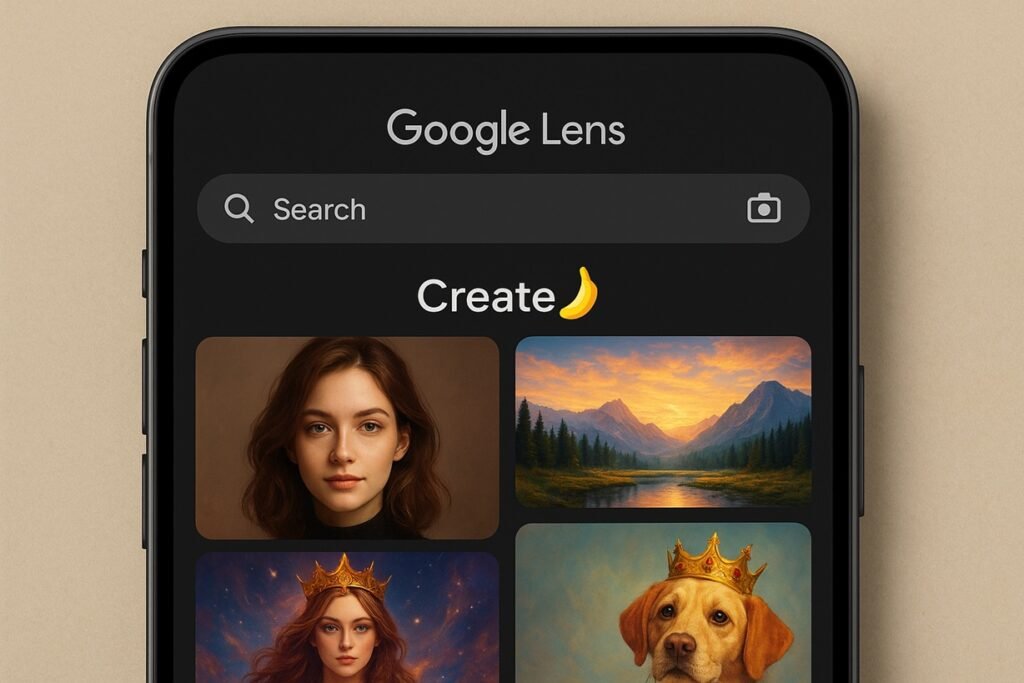
The feature is accessible through a new ‘Create’ mode in Google Lens, marked by a distinctive yellow banana icon, symbolizing that the Nano Banana model is active.
How To Use Nano Banana With Google Lens For Free
Follow this detailed, step-by-step guide to start using Nano Banana AI on your Android or iOS device:
Step 1: Update Your Google App
Make sure your Google app is updated to the latest version.
- Go to the Google Play Store (Android) or App Store (iOS).
- Search for “Google” and tap Update if available.
This ensures that the Nano Banana feature is activated in Google Lens.
Step 2: Open Google Lens
- Launch the Google app on your phone.
- Tap the Lens icon (the small camera symbol) on the right side of the search bar.
This opens the Lens interface, where you can scan objects, images, or start creating with AI.
Step 3: Select the ‘Create’ Mode
- Once inside Google Lens, locate the ‘Create’ tab at the bottom of the screen.
- This tab is often marked with a yellow banana emoji 🍌 — indicating that Nano Banana AI is ready to use.
Tap Create to access the image generation and editing interface.
Step 4: Choose How You Want to Start
You’ll see three options to begin your creation:
- 📸 Take a New Photo — Use your camera to capture a fresh image.
- 🖼️ Use an Existing Photo — Select one from your gallery.
- ✨ Create Image from Text — Tap ‘Create Image’ if you want to generate something new entirely from your imagination.
For example, you can type “a panda astronaut floating in space” to generate a custom AI image.
Step 5: Enter Your Prompt
After selecting your base image or starting from scratch, you’ll see a prompt box.
Type a detailed command describing what you want the AI to do.
Examples of Prompts:
- “Change the background to a neon cityscape.”
- “Make this portrait look like a watercolor painting.”
- “Add a majestic golden crown to the cat.”
- “Turn the photo into a fantasy illustration.”
Tip: The more descriptive your prompt, the better the output.
Step 6: Wait for Nano Banana to Process
Once you submit your prompt, Nano Banana uses Google’s advanced image model to analyze, generate, and modify your picture.
This process usually takes a few seconds, depending on the complexity of your request.
You’ll then see the AI-edited image preview on your screen.
Step 7: Download or Share Your AI Image
When you’re happy with the result:
- Tap Download to save it to your device, or
- Tap Share to send it directly through social media, WhatsApp, or email.
You can also go back and refine your prompt for even more creative results.
Pro Tips for Best Results
- Use bright, clear photos for better edits.
- Be specific in your prompts (e.g., “sunset on a tropical beach” vs. “beach”).
- Try combining styles: “anime-style portrait with soft lighting.”
- Experiment with multiple prompts to explore Nano Banana’s creativity.
Why Nano Banana Is Trending
The Nano Banana model represents a major step forward in AI accessibility. Unlike many premium tools that require subscriptions, Google offers Nano Banana integration for free within Google Lens.
This makes advanced image editing available to everyone, from casual users to digital artists — all through a simple mobile interface.
Final Thoughts
The Nano Banana AI tool inside Google Lens is more than just a fun experiment — it’s a glimpse into the future of visual creativity. You can now turn your ideas into beautiful, realistic, or artistic images using nothing more than your phone and a few words.
Update your Google app, open Lens, tap ‘Create’, and start exploring the power of AI art generation for free today.
