
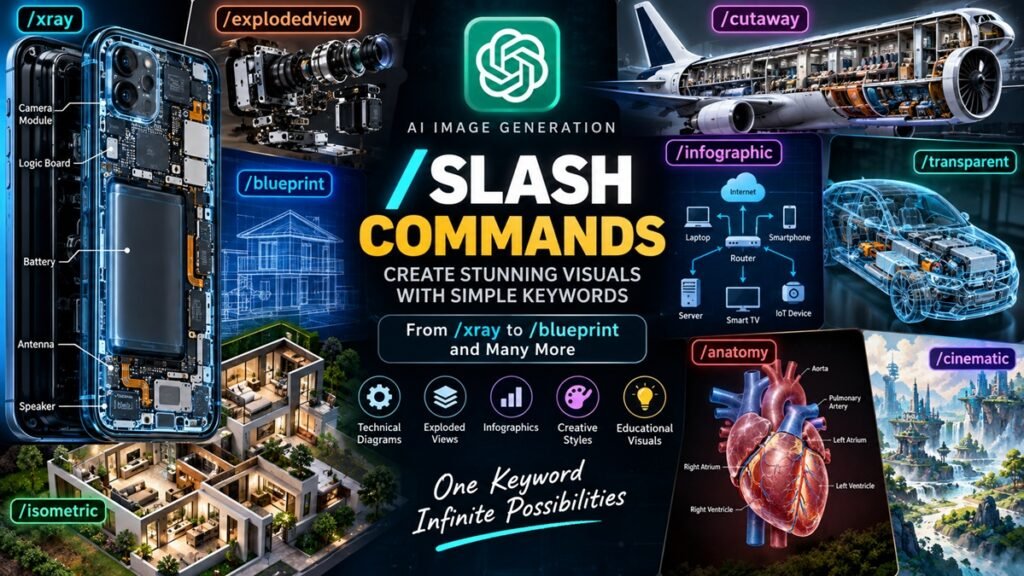
AI Image Generation Slash Commands and Visual Codewords
/xray, /blueprint, /explodedview, /cutaway, /isometric, /infographic and More
AI image generation has changed the way people create illustrations, technical diagrams, product visualizations, concept art, educational graphics, realistic scenes, and many other types of visual content.
One interesting prompting technique that has become popular among AI-image users is the use of slash-style visual keywords, such as:
/xray smartphone/blueprint electric motor/explodedview mechanical keyboard/cutaway house/isometric server room/infographic how DNS worksAt first glance, these look like programming commands. However, there is an important distinction:
These are generally prompt shorthand or visual codewords, not universal hidden commands built into ChatGPT.
The slash provides a convenient way to organize an instruction. The AI model ultimately responds to the meaning and context of the prompt.
This article explains what these visual codewords mean, how to use them, how to combine them, and how to build stronger image prompts around them.
1. What Are Slash-Style Visual Commands?
A slash-style visual command is a short keyword used at the beginning of a prompt to communicate a particular visual treatment, presentation style, composition, or representation method.
For example:
/xray smartphonecan be understood conceptually as:
Create a smartphone visualization emphasizing its internal structure.
Similarly:
/blueprint dronesuggests an engineering blueprint-style presentation.
And:
/explodedview camerasuggests showing the camera disassembled into its major components.
The important point is that the AI does not necessarily have a special software function called /xray. Instead, the word xray acts as a semantic instruction.
2. Are /xray and Similar Commands Official ChatGPT Commands?
This is the most important thing to understand.
There are two different concepts:
Official Interface Commands
These are features actually implemented by an application’s interface. Depending on the ChatGPT version and available features, the interface may provide specific tools or modes.
Prompt Codewords
These are words that users place into prompts to influence the generated result.
/xray
/blueprint
/explodedview
/cutaway
These should generally be treated as prompt conventions, rather than assuming that ChatGPT has a hidden programming system behind them.
/xray smartphone does not necessarily execute a hidden xray() function. It is better understood as a visual instruction interpreted from the prompt.
3. Why Use the Slash at All?
The slash provides a useful visual distinction and makes short prompting conventions easier to remember.
Compare:
Create a technical X-ray-style visualization of a smartphone.with:
/xray smartphoneThe second version is much shorter.
For users who generate images frequently, this can become a kind of personal prompting vocabulary.
For example:
/xraycan mean:
Show internal structure.
/blueprintcan mean:
Use engineering blueprint presentation.
/explodedviewcan mean:
Separate the components visually.
/isometriccan mean:
Use an isometric viewpoint.
/infographiccan mean:
Present information graphically.
4. The Basic Syntax
The simplest structure is:
/[visual-codeword] [subject]Examples:
/xray laptop/blueprint electric car/explodedview mechanical keyboard/cutaway airplane/isometric smart home/infographic DNSThis is useful for experimentation. However, for high-quality results, you generally should not stop at the keyword. A better prompt adds the details that matter.
5. /xray — Internal Structure Visualization
The /xray keyword is one of the most interesting visual concepts.
Its basic purpose is to communicate:
Show what is normally hidden inside the object.
For example:
/xray smartphonecould suggest a visualization showing:
- Battery
- Motherboard
- Camera modules
- Speakers
- Antennas
- Processor
- Internal frame
- Connectors
A more detailed prompt would be:
/xray smartphone

Show the internal components clearly:
battery, motherboard, camera modules, speakers,
antenna system and structural frame.

Technical product visualization,
realistic materials,
clean composition,
dark neutral background.
This gives the model considerably more information.
6. /xray Is Not the Same as a Medical X-Ray
This distinction matters.
If you write:
/xray human handthe model might interpret the instruction as a medical radiographic image.
But:
/xray smartphoneusually implies an internal product visualization.
Context determines the meaning.
Therefore, when precision matters, explicitly describe the intended visualization:
Create a technical internal-view visualization of a smartphone,
with the outer body partially transparent and the major internal
components visible.
This is more reliable than relying exclusively on /xray.
7. /explodedview — Exploded View
An exploded view is extremely useful for mechanical and technical subjects.
Instead of displaying an object as one assembled unit, its components are separated spatially while maintaining their relative positions.
Example:
/explodedview mechanical keyboardA detailed prompt could be:
/explodedview mechanical keyboard

Separate the keyboard into its major components:
keycaps, switches, plate, PCB, stabilizers,
case, mounting system and screws.

Technical product visualization,
clean component spacing,
orthographic presentation,
white background.
This is particularly useful for:
- Electronics
- Mechanical products
- Appliances
- Automobiles
- Computers
- Cameras
- Drones
- Tools
- Furniture
- Industrial equipment
8. /cutaway — Cutaway Visualization
A cutaway image removes or hides part of an object’s exterior so that the viewer can see the internal structure.
For example:
/cutaway housecan communicate:
Show the exterior of a house while cutting away selected sections to reveal rooms and internal construction.
Example:
/cutaway modern house

Show the foundation, electrical wiring,
water pipes, HVAC system, rooms and structural frame.

Architectural technical illustration.
Cutaway views are excellent for educational content.
They can explain:
- Buildings
- Engines
- Machines
- Aircraft
- Spacecraft
- Factories
- Computer systems
- Biological structures
9. /blueprint — Engineering Blueprint Style
Blueprint-style visualization is useful when you want an engineering or architectural appearance.
Example:
/blueprint droneA more precise prompt:
/blueprint quadcopter drone

Technical engineering blueprint,
front view, side view and top view,
dimension lines,
component labels,
technical annotations,
precise geometric construction,
blueprint drafting aesthetic.
The result is intended to resemble technical documentation rather than ordinary photography.
10. /schematic — Schematic Representation
A schematic focuses on relationships and functional connections rather than physical appearance.
For example:
/schematic smart homeYou can expand it into:
/schematic smart home system

Show sensors, Wi-Fi router,
smart hub, smart lights, smart locks,
security cameras and cloud connection.

Use clearly separated blocks,
connection lines and labels.
This is especially useful for:
- Electronics
- IoT
- Networking
- Computer systems
- Automation
- Electrical engineering
11. /wireframe — Wireframe Visualization
Wireframe visualization emphasizes the structural geometry of an object.
Example:
/wireframe carA more precise version:
/wireframe sports car

Show the vehicle as a 3D engineering wireframe,
with visible structural geometry,
perspective view,
clean technical presentation.
Wireframes are commonly useful for:
- Architecture
- 3D modeling concepts
- Vehicles
- Machines
- Buildings
- Digital interfaces
12. /isometric — Isometric View
Isometric presentation is particularly useful for technical diagrams, architecture, infrastructure, and systems.
Example:
/isometric server roomA detailed version:
/isometric server room

Show server racks, networking equipment,
cabling, cooling systems and power distribution.

Clean technical visualization,
consistent isometric perspective,
organized composition.
Isometric views make complex systems easier to understand.
13. /orthographic — Technical Orthographic Views
Orthographic projection shows an object from standardized directions without normal photographic perspective.
Common views include:
- Front
- Rear
- Left
- Right
- Top
- Bottom
Example:
/orthographic industrial robotBetter:
/orthographic industrial robotic arm

Show front, side and top views.
Technical engineering drawing,
consistent scale,
clean linework,
component annotations.
This is useful when the geometry itself matters.
14. /infographic — Information Visualization
An infographic is designed to communicate information visually.
Example:
/infographic how DNS worksA more detailed prompt:
/infographic how DNS works

Explain the process from a user's browser
to DNS resolver, root server, TLD server,
authoritative DNS server and final IP address.

Use arrows, labels, numbered steps
and a clean technical layout.
This is particularly useful for educational content.
15. /diagram — Diagrammatic Representation
A diagram simplifies a complicated concept into visual components.
For example:
/diagram HTTP requestor:
/diagram cloud architectureYou could ask:
/diagram web application architecture

Show:
user → DNS → CDN → load balancer → web server
→ application server → database.

Clearly label each component and connection.
16. /flowchart — Process Visualization
A flowchart is useful when something happens through sequential steps.
Example:
/flowchart login processYou can create:
/flowchart user authentication

User enters credentials
→ application
→ authentication service
→ database
→ token generation
→ authenticated session.
This is useful for:
- Programming
- Networking
- Business processes
- Automation
- Cybersecurity education
- DevOps
- System architecture
17. /mindmap — Concept Relationships
Mind maps show relationships between ideas.
Example:
/mindmap cybersecurityYou can expand it:
/mindmap cybersecurity

Central topic: Cybersecurity

Branches:
network security,
application security,
identity,
cryptography,
endpoint security,
cloud security,
incident response,
security operations.
18. /anatomy — Anatomical Visualization
This keyword can be useful for educational diagrams.
For example:
/anatomy human heartYou can specify:
/anatomy human heart

Educational medical illustration,
show chambers, valves, major blood vessels,
and clearly labeled structures.
For medical subjects, accuracy is important, so an AI-generated image should not automatically be treated as medically authoritative.
19. /transparent — Transparency Visualization
This suggests that the object or selected parts should be visually transparent.
Example:
/transparent laptopBetter:
/transparent laptop

Make the outer chassis semi-transparent
so the motherboard, battery, cooling system
and internal components are visible.
Notice how this differs from /xray.
/xray communicates the concept of seeing inside, while /transparent communicates a visual rendering technique.
They can also be combined:
/xray /transparent laptop20. /ghosted — Ghosted Components
Ghosted visualization uses faded or translucent components to reveal relationships between external and internal parts.
Example:
/ghosted automobile engineThis can be useful when you want the external shell to remain visible while internal components are simultaneously visible.
21. /layers — Layered Visualization
Layers are useful for systems composed of multiple levels.
For example:
/layers computer networkingcould represent:
Application
Transport
Network
Data Link
Physical
You could ask:
/layers OSI model

Create a clean educational visualization
showing all seven OSI layers,
their responsibilities and example protocols.
22. /annotated — Annotated Visualization
This tells the model that the image should include explanatory callouts or labels.
Example:
/annotated motherboardBetter:
/annotated computer motherboard

Identify CPU socket,
RAM slots,
PCIe slots,
VRM,
chipset,
storage interfaces,
power connectors and I/O ports.
23. /labeled — Label Important Components
This is similar to annotated visualization but focuses strongly on labels.
Example:
/labeled network diagramor:
/labeled solar power systemFor educational graphics, this can make the output much more useful.
However, AI image models can still make spelling and labeling errors. If exact textual labels are critical, generating the visual and adding labels afterward in a design tool is often safer.
24. /technicaldrawing
This keyword communicates a technical-drawing aesthetic.
Example:
/technicaldrawing mechanical gearPossible additions include:
technical drawing,
precise linework,
dimension annotations,
section lines,
engineering documentation,
multiple views.
25. /cad
This suggests computer-aided-design-like presentation.
Example:
/cad industrial robotYou can make it more specific:
/cad industrial robotic arm

3D CAD-style visualization,
precise mechanical geometry,
engineering components,
clean neutral background,
technical presentation.
Remember that a generated image is not automatically a valid CAD model. It may look like CAD without containing actual editable CAD geometry.
26. /render
This suggests a polished 3D rendering.
/render modern smart homeYou can combine it with technical visualization:
/render /isometric smart home27. /cinematic
This changes the visual presentation toward cinematic composition.
/cinematic futuristic data centerPossible additions include:
- Dramatic lighting
- Depth
- Atmospheric perspective
- Wide composition
- Realistic materials
- Film-like framing
28. /photorealistic
This suggests a realistic photographic appearance.
/photorealistic server roomHowever, /photorealistic is not a guarantee that every object or technical detail will be physically accurate. It primarily communicates the desired visual appearance.
29. /macro
Macro visualization emphasizes extremely close details.
/macro PCBThis can be useful for:
- Circuit boards
- Electronic components
- Microchips
- Textures
- Mechanical parts
- Manufacturing details
30. /microscopic
This suggests visualization at microscopic scale.
/microscopic silicon waferor:
/microscopic bacteriaAgain, it is a visual instruction, not a scientific measurement guarantee.
31. /satellite
Useful for overhead geographic visualization.
/satellite smart cityor:
/satellite data center campus32. /topdown
This requests a top-down perspective.
/topdown network operations centerThis is useful for layouts, maps, rooms and infrastructure.
33. /sideview, /frontview, /topview
These are straightforward viewpoint instructions.
/frontview car/sideview airplane/topview factoryFor engineering work, combining multiple views can be useful.
34. /crosssection
A cross-section cuts through an object to expose internal layers.
Example:
/crosssection fiber optic cableA detailed prompt:
/crosssection fiber optic cable

Show the outer jacket,
strength members,
cladding,
core and protective layers.

Technical educational illustration.
This is particularly useful for educational engineering content.
35. /beforeafter
Useful for showing transformations.
/beforeafter old server room vs modern server roomor:
/beforeafter PCB design improvementThe exact visual layout should still be specified if you need a particular arrangement.
36. /timeline
Useful for historical or developmental visualization.
/timeline evolution of mobile phonesYou could ask for major generations chronologically, with dates and short descriptions.
37. /comparison
Useful for side-by-side comparison.
/comparison IPv4 vs IPv6For educational material:
/comparison IPv4 vs IPv6

Create a clean two-column technical infographic.
Compare address length,
notation,
address space,
NAT usage,
autoconfiguration,
and major differences.
38. /poster
Useful for poster-like composition.
/poster cybersecurity awareness39. /cover
Useful for creating a cover image for:
- Reports
- Books
- Courses
- Articles
- Presentations
- Documentation
Example:
/cover "Introduction to Computer Networking"40. /icon
Useful when you want a simple icon rather than a full scene.
/icon cloud server41. /logo
Useful for logo concepts.
/logo futuristic IoT companyFor professional branding, the result should generally be treated as a concept rather than assuming perfect typography or trademark suitability.
42. /sticker
Useful for sticker-style illustrations.
/sticker friendly robot43. /pixelart
Creates a pixel-art-oriented visual style.
/pixelart retro computer44. /comic
Useful for comic-style scenes.
/comic cybersecurity student learning networking45. /manga
Useful for manga-inspired visual presentation.
/manga futuristic robot laboratory46. /watercolor
Watercolor artistic treatment.
/watercolor mountain village47. /oilpainting
Oil-painting aesthetic.
/oilpainting futuristic city48. /pencilsketch
Pencil sketch style.
/pencilsketch mechanical engine49. /ink
Ink illustration style.
/ink architectural building50. /noir
Dark, high-contrast cinematic visual style.
/noir detective office51. /cyberpunk
Cyberpunk aesthetic.
/cyberpunk futuristic server room52. /steampunk
Steampunk-inspired visual style.
/steampunk mechanical computer53. The Most Powerful Technique: Combining Commands
The real advantage comes from combining visual concepts.
For example:
/xray /explodedview smartphoneThis communicates two things:
- Reveal internal structure.
- Separate components.
Another example:
/blueprint /orthographic industrial robotThis suggests:
- Blueprint style
- Engineering views
- Multiple technical perspectives
Another:
/isometric /infographic smart homeThis suggests:
- Isometric presentation
- Informational diagram
- Smart-home architecture
Another:
/xray /annotated electric vehicleThis suggests:
- Internal structure
- Component labels
54. Example: DNS Visualization
DNS is a networking concept, so you could create:
/infographic DNS resolutionBut a much stronger prompt would be:
/infographic /isometric DNS resolution

Create a clean educational networking diagram.

Show:

User Device
↓
Browser
↓
DNS Resolver
↓
Root DNS Server
↓
TLD DNS Server
↓
Authoritative DNS Server
↓
IP Address
↓
Web Server

Use clear arrows,
technical labels,
organized spacing,
professional networking-education style.
The keyword gives the visual format, while the rest of the prompt provides the actual content.
55. Example: Smartphone Internal Architecture
/xray /annotated smartphone

Show the smartphone's internal architecture.

Visible components:
- battery
- motherboard
- processor
- RAM
- storage
- camera modules
- speakers
- microphones
- antenna system
- charging port
- vibration motor

Semi-transparent outer shell,
realistic internal components,
clean technical product visualization,
professional engineering presentation.
This is much more controllable than simply writing /xray smartphone.
56. Example: Computer
/explodedview /annotated desktop computer

Separate the computer into:

CPU,
GPU,
motherboard,
RAM,
SSD,
power supply,
cooling system,
fans,
case,
storage drives and cables.

Show each component in an organized exploded arrangement.

Technical product documentation style.
57. Example: Car
/xray /cutaway electric vehicle

Show the internal architecture:

battery pack,
electric motors,
inverter,
charging system,
cooling system,
suspension,
steering,
braking system,
cabin structure and wiring.

Realistic engineering visualization.
58. Example: IoT Architecture
/isometric /infographic IoT smart home architecture

Show:

temperature sensors,
motion sensors,
smart lights,
smart locks,
cameras,
Wi-Fi router,
IoT gateway,
cloud server,
mobile application.

Show wireless and Internet connections
using clear directional arrows.

Professional technical infographic.
59. Example: Server Architecture
/explodedview /annotated server rack

Show:

server chassis,
motherboard,
CPU,
RAM,
storage drives,
power supplies,
cooling fans,
heat sinks,
network interfaces
and rack structure.

Technical enterprise hardware visualization.
60. Example: Cybersecurity
/infographic /flowchart cybersecurity incident response

Show:

Detection
↓
Analysis
↓
Containment
↓
Eradication
↓
Recovery
↓
Lessons Learned

Professional cybersecurity training graphic.
61. Visual Commands Can Be Divided Into Categories
Instead of memorizing random keywords, it is better to organize them into groups.
A. Internal Structure
/xray
/cutaway
/crosssection
/transparent
/ghosted
B. Engineering
/blueprint
/schematic
/cad
/technicaldrawing
/orthographic
/wireframe
C. Components
/explodedview
/layers
/annotated
/labeled
D. Information
/infographic
/diagram
/flowchart
/mindmap
/timeline
/comparison
E. Camera and Viewpoint
/isometric
/topdown
/frontview
/sideview
/topview
/satellite
F. Art Style
/anime
/manga
/comic
/watercolor
/oilpainting
/pencilsketch
/ink
/pixelart
/noir
/cyberpunk
/steampunk
G. Rendering
/render
/photorealistic
/cinematic
/macro
/microscopic
62. The Difference Between a Keyword and a Complete Prompt
This is a critical concept.
A visual keyword tells the model how you want something represented.
It does not necessarily tell the model:
- What exactly to show
- Which components matter
- How they should be arranged
- What labels to include
- What perspective to use
- What background to use
- What level of realism you want
Therefore:
/xray routeris only a starting point.
A complete prompt might be:
/xray /annotated Wi-Fi router

Create a technical internal visualization of a modern
Wi-Fi router.

Show:
main PCB,
processor,
RAM,
antenna modules,
Ethernet ports,
power circuit,
cooling components,
wireless radio modules
and internal connectors.

Keep the outer casing partially transparent.

Use a clean engineering visualization,
neutral background,
organized component placement,
professional technical documentation style.
63. A Useful Prompt Formula
A good way to construct these prompts is:
[VISUAL CODEWORD] + [SUBJECT] + [VIEW] + [IMPORTANT COMPONENTS] + [STYLE] + [BACKGROUND] + [ANNOTATIONS] + [QUALITY/COMPOSITION]
For example:
/xray /isometric
smart home gateway
+
three-quarter technical view
+
PCB, processor, Wi-Fi module, Ethernet ports
+
engineering visualization
+
neutral background
+
component labels
+
clean professional composition
64. Example Using the Complete Formula
/xray /isometric /annotated

SUBJECT:
Modern Wi-Fi router

PURPOSE:
Technical educational illustration

VISIBLE ELEMENTS:
PCB, CPU, RAM, wireless radio modules,
antennas, Ethernet ports, power circuit,
USB port and cooling components

VIEW:
Three-quarter isometric internal view

STYLE:
Professional engineering visualization

BACKGROUND:
Clean neutral background

ANNOTATIONS:
Clear component callouts

COMPOSITION:
Router centered with internal components
organized clearly around the main body

ACCURACY:
Technically plausible modern router architecture
65. Multiple Slash Keywords Are Not Magic
Consider:
/xray /blueprint /cinematic /anime /explodedview /isometricThis may look powerful, but it can actually create contradictory instructions.
For example:
/blueprint→ technical drawing/cinematic→ photographic presentation/anime→ stylized art/xray→ internal structure/explodedview→ separated components/isometric→ specific projection
The model has to reconcile all of these.
More keywords do not automatically mean better output.
66. Avoid Keyword Overloading
A complicated prompt such as:
/xray /blueprint /anime /cinematic /watercolor /photorealisticA cleaner version would be:
/xray /blueprint smartphone

Technical engineering visualization.
Show the internal battery, motherboard,
camera modules and antenna system.
Use a clean blueprint presentation.
Choose keywords that support the same visual goal.
67. Think of Visual Keywords as a Layered System
A powerful way to understand them is through layers.
Layer 1 — Subject
smartphoneLayer 2 — Representation
/xrayLayer 3 — Perspective
/isometricLayer 4 — Information
/annotatedLayer 5 — Aesthetic
/technicalConceptually:
/xray
    ↓
smartphone
    ↓
isometric view
    ↓
annotated components
    ↓
technical presentation
This creates much more predictable prompting.
68. /xray + /explodedview + /annotated
This is one of the strongest combinations for technical content.
/xray /explodedview /annotated smartphoneConceptually:
Internal structure
       +
Separated components
       +
Labels
       +
Subject = smartphone
This is ideal for:
- Tutorials
- Technical blogs
- Engineering articles
- Educational websites
- Product explanations
69. /blueprint + /orthographic
/blueprint /orthographic droneThis suggests:
- Engineering drawing
- Front/side/top-style views
- Precise technical presentation
70. /isometric + /infographic
/isometric /infographic data centerThis is useful when you want a visually attractive but educational architecture diagram.
71. /cutaway + /annotated
/cutaway /annotated automobile engineThis communicates:
Show the engine internally and identify its major components.
72. /crosssection + /technicaldrawing
/crosssection /technicaldrawing fiber optic cableThis is ideal for educational engineering content.
73. Slash Commands vs Natural Language
There is nothing inherently more powerful about:
/xray smartphonethan:
Show the internal structure of a smartphone
using an X-ray-style technical visualization.
In fact, the second may sometimes be clearer.
The advantage of slash notation is speed, consistency and memorization.
Think of it as an abbreviation.
74. Build Your Own Slash Vocabulary
You do not have to limit yourself to existing community conventions.
You can create your own personal shorthand.
For example, you might decide:
/techmeans:
Technical educational presentation.
/cleanmeans:
Minimal clean background.
/edumeans:
Educational infographic.
Then your personal prompt system could look like:
/xray /tech /edu smartphoneBut remember that these custom commands only work because you or the model understands the words from context. They are not automatically registered commands.
75. A Personal Prompt Dictionary
For technical content creation, you could maintain something like:
| Keyword | Meaning |
|---|---|
/xray | Internal structure |
/explodedview | Separated components |
/cutaway | Cutaway structure |
/crosssection | Cross-sectional structure |
/blueprint | Engineering blueprint |
/schematic | Functional schematic |
/wireframe | Structural geometry |
/isometric | Isometric perspective |
/orthographic | Technical multi-view |
/annotated | Labels and callouts |
/infographic | Information-focused visual |
/flowchart | Sequential process |
/mindmap | Concept relationships |
/comparison | Side-by-side comparison |
/timeline | Chronological presentation |
This becomes a reusable prompt vocabulary.
76. /xray for Educational Content
One of the best applications is education.
Imagine an article titled:
How Does a Smartphone Work?
Instead of using a generic smartphone photograph, you can create:
/xray /annotated smartphoneThen show:
- CPU
- Battery
- Cameras
- Speakers
- Antennas
- Display layers
- Motherboard
The image becomes part of the explanation.
77. /xray for Electronics
For electronics content:
/xray /annotated PCBcould show:
- Microcontroller
- Voltage regulators
- Connectors
- Sensors
- Capacitors
- Resistors
- Communication modules
For example:
/xray /annotated IoT development board

Show the microcontroller,
power-management section,
Wi-Fi module,
GPIO headers,
USB interface,
status LEDs,
voltage regulators
and major passive components.

Technical electronics illustration.
78. /explodedview for Product Documentation
Suppose you have a smart-home device.
/explodedview smart thermostatand show:
outer casing
↓
display
↓
PCB
↓
sensor module
↓
wireless module
↓
power section
↓
backplate
This can be useful for:
- Product manuals
- Blogs
- Product pages
- Tutorials
- Repair education
79. /schematic for Networking
For networking:
/schematic home networkYou could represent:
Internet
   ↓
ISP
   ↓
Router
   ↓
Switch
   ↓
PC
   ↓
IoT Devices
Add:
VLANs,
Wi-Fi access points,
firewall,
DNS resolver
and you have a strong network architecture visualization prompt.
80. /flowchart for Software
For software:
/flowchart API requestcould represent:
Client
 ↓
DNS
 ↓
TCP connection
 ↓
TLS handshake
 ↓
HTTP request
 ↓
Load balancer
 ↓
Application
 ↓
Database
 ↓
HTTP response
This is particularly useful for technical education.
81. /timeline for Technology History
Example:
/timeline evolution of Wi-FiYou could show major generations chronologically, along with dates and important improvements.
82. /comparison for Technical Articles
Example:
/comparison IPv4 vs IPv6Then specify:
Compare:

address size,
notation,
address space,
configuration,
broadcast behavior,
multicast,
NAT,
security features,
header structure.
This can produce a useful educational layout.
83. A Professional Prompt Template
For serious image generation, use:
/[VISUAL MODE] /[VIEW MODE] /[INFORMATION MODE]

SUBJECT:
[What should be shown]

PURPOSE:
[Education / product documentation / concept art / marketing]

VISIBLE ELEMENTS:
[List the important objects/components]

VIEW:
[Front / side / isometric / cutaway / exploded]

STYLE:
[Technical / realistic / cinematic / minimal]

BACKGROUND:
[White / neutral / dark / transparent]

ANNOTATIONS:
[Labels / arrows / dimensions / none]

COMPOSITION:
[Centered / wide / vertical / comparison / multi-panel]

ACCURACY:
[Realistic proportions / technically plausible / reference-based]
84. Example Using the Complete Formula
/xray /isometric /annotated

SUBJECT:
Modern Wi-Fi router

PURPOSE:
Technical educational illustration

VISIBLE ELEMENTS:
PCB, CPU, RAM, wireless radio modules,
antennas, Ethernet ports, power circuit,
USB port and cooling components

VIEW:
Three-quarter isometric internal view

STYLE:
Professional engineering visualization

BACKGROUND:
Clean neutral background

ANNOTATIONS:
Clear component callouts

COMPOSITION:
Router centered with internal components
organized clearly around the main body

ACCURACY:
Technically plausible modern router architecture
85. Important Limitation: Text Accuracy
AI image generators can struggle with:
- Long labels
- Exact spelling
- Technical abbreviations
- Numbers
- Dense tables
- Complicated diagrams
For example:
/infographic OSI modelmight produce a visually attractive graphic but contain incorrect text.
For professional technical documentation, a better workflow can be:
AI → Generate visual structure
      ↓
Design tool → Add exact labels
      ↓
Final technical graphic
This is particularly important for engineering and educational material.
86. Important Limitation: Technical Accuracy
A beautiful /xray image of a smartphone does not necessarily represent the actual internal architecture of a real smartphone.
The same applies to:
/xray CPU/cutaway engine/blueprint aircraftThe result may be visually convincing but technically incorrect.
Visual realism is not the same as engineering accuracy.
If accuracy matters, provide the exact model, reference images, component list, dimensions, or other authoritative information.
87. Prompting for Better Technical Accuracy
Instead of:
/xray serverwrite:
/xray enterprise rack server

Show realistic internal server architecture:
motherboard,
CPU,
DIMM slots,
storage bays,
PCIe expansion cards,
power supply units,
cooling fans,
heat sinks,
network interfaces and airflow paths.

Keep the component arrangement technically plausible.
Do not invent unnecessary components.
The additional constraints help establish the intended structure.
88. Using Reference Images
For difficult subjects, a reference image can be extremely useful.
For example:
Use this reference image as the exterior design.
Create an internal technical visualization,
keeping the proportions and major external features consistent.
This can be more reliable than simply naming a product.
89. /xray for Educational Content
One of the strongest applications of these visual conventions is educational content.
Imagine an article:
How Does a Smartphone Work?
Instead of using a generic smartphone photograph, an internal visualization can show:
- CPU
- Battery
- Camera system
- Speakers
- Antennas
- Display layers
- Motherboard
This turns the image into part of the explanation instead of merely being decorative.
90. The Golden Rule
The most important rule is:
Use slash keywords to describe the visual treatment, and use normal language to describe the actual content.
For example:
/xray smartphoneis a visual shortcut.
But:
/xray smartphone

Show the battery, motherboard, cameras,
antenna system, speakers and charging port.
Use a clean technical product visualization.
is a complete prompt.
91. Quick Reference Cheat Sheet
| Keyword | Main Purpose |
|---|---|
/xray | Reveal internal structure |
/transparent | Make surfaces/components transparent |
/ghosted | Show faded internal/external relationships |
/cutaway | Remove part of exterior to reveal interior |
/crosssection | Show internal cross-section |
/explodedview | Separate components |
/blueprint | Engineering blueprint style |
/schematic | Functional system representation |
/technicaldrawing | Technical drawing |
/cad | CAD-like presentation |
/wireframe | Structural geometry |
/orthographic | Technical projection/views |
/isometric | Isometric perspective |
/topdown | Top-down view |
/frontview | Front view |
/sideview | Side view |
/topview | Top view |
/infographic | Information visualization |
/diagram | Conceptual diagram |
/flowchart | Process flow |
/mindmap | Concept relationships |
/timeline | Chronological information |
/comparison | Side-by-side comparison |
/annotated | Callouts/annotations |
/labeled | Labels |
/layers | Layered structure |
/render | 3D-rendered presentation |
/photorealistic | Photographic realism |
/cinematic | Cinematic appearance |
/macro | Extreme close-up |
/microscopic | Microscopic visualization |
/satellite | Satellite/overhead view |
/poster | Poster composition |
/cover | Cover design |
/icon | Icon |
/logo | Logo concept |
/sticker | Sticker style |
/anime | Anime aesthetic |
/manga | Manga aesthetic |
/comic | Comic style |
/watercolor | Watercolor |
/oilpainting | Oil painting |
/pencilsketch | Pencil drawing |
/ink | Ink illustration |
/pixelart | Pixel art |
/noir | Noir aesthetic |
/cyberpunk | Cyberpunk aesthetic |
/steampunk | Steampunk aesthetic |
92. Final Understanding
The easiest way to remember the entire concept is:
SLASH KEYWORD
      ↓
Visual instruction
      ↓
Subject
      ↓
Detailed description
      ↓
Composition
      ↓
Style
      ↓
Final image
For example:
/xray /explodedview /annotated smartphonemeans, conceptually:
Show the inside
      +
Separate the components
      +
Label the components
      +
Subject = smartphone
While:
/blueprint /orthographic dronemeans:
Engineering blueprint
      +
Technical views
      +
Subject = drone
And:
/isometric /infographic IoT smart homemeans:
Isometric presentation
      +
Information-focused layout
      +
Subject = IoT smart home
The slash itself is not the magic.
The real power comes from the semantic instruction represented by the keyword, combined with a detailed natural-language prompt.
So, rather than thinking:
“/xray is a secret ChatGPT command.”
Think:
“/xray is a compact visual instruction that tells the image model what kind of representation I want.”
Once you understand that distinction, you can create your own visual shorthand and combine these concepts systematically for technical illustrations, engineering diagrams, product visualizations, educational graphics, networking diagrams, IoT architecture, cybersecurity concepts, and creative artwork.
Read more: Who Should Take an AI Course and How Can It Support Career Growth?
